Clients and money in one overview.
A client card with its own login, issued and received invoices, team expenses and reports the client receives as a link - no login needed.
Everything about a client on one card.
A client's billing details, contacts, notes and projects are all in one place. Clients can log in with their own account and see only their projects - not your internal workings.
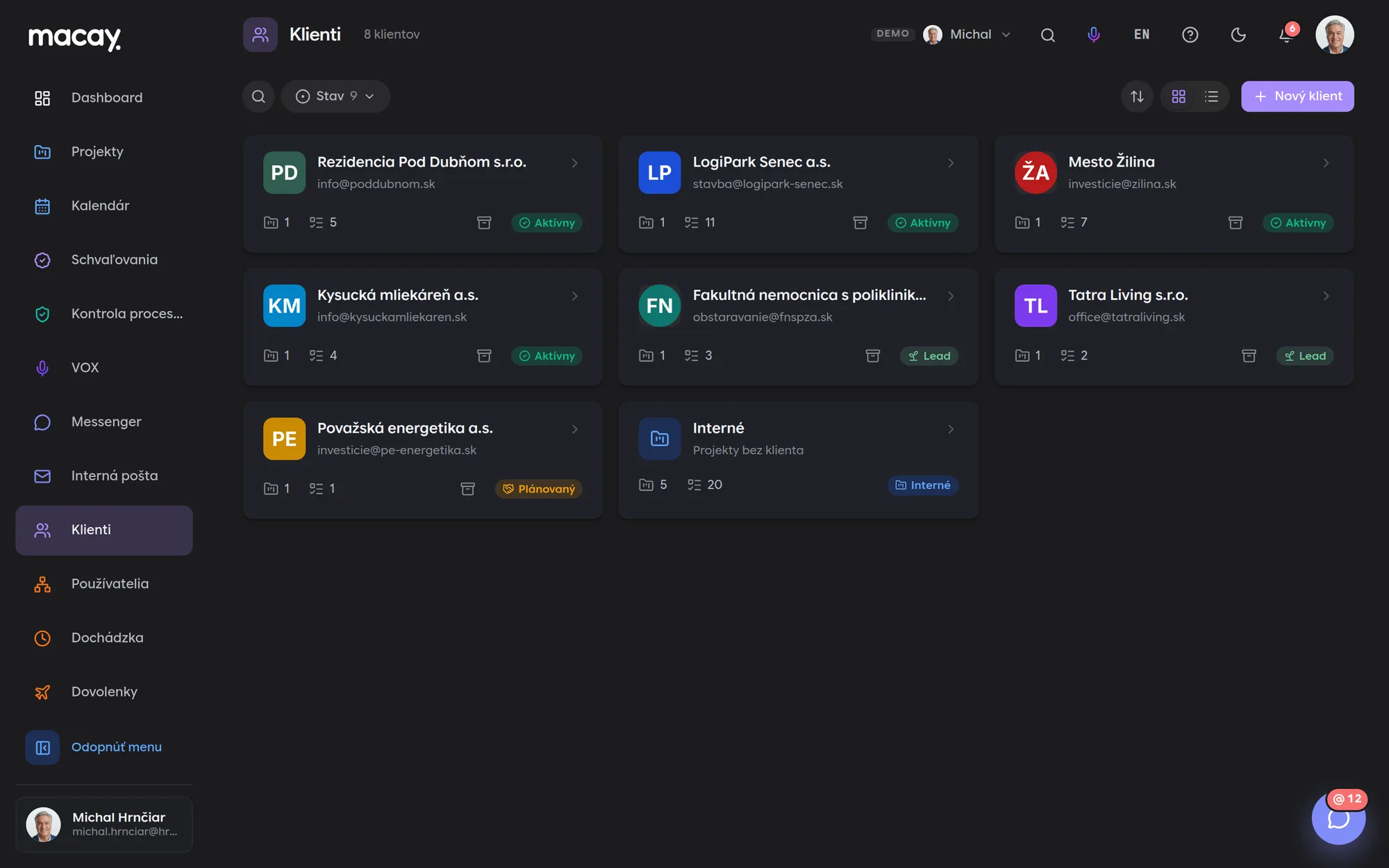
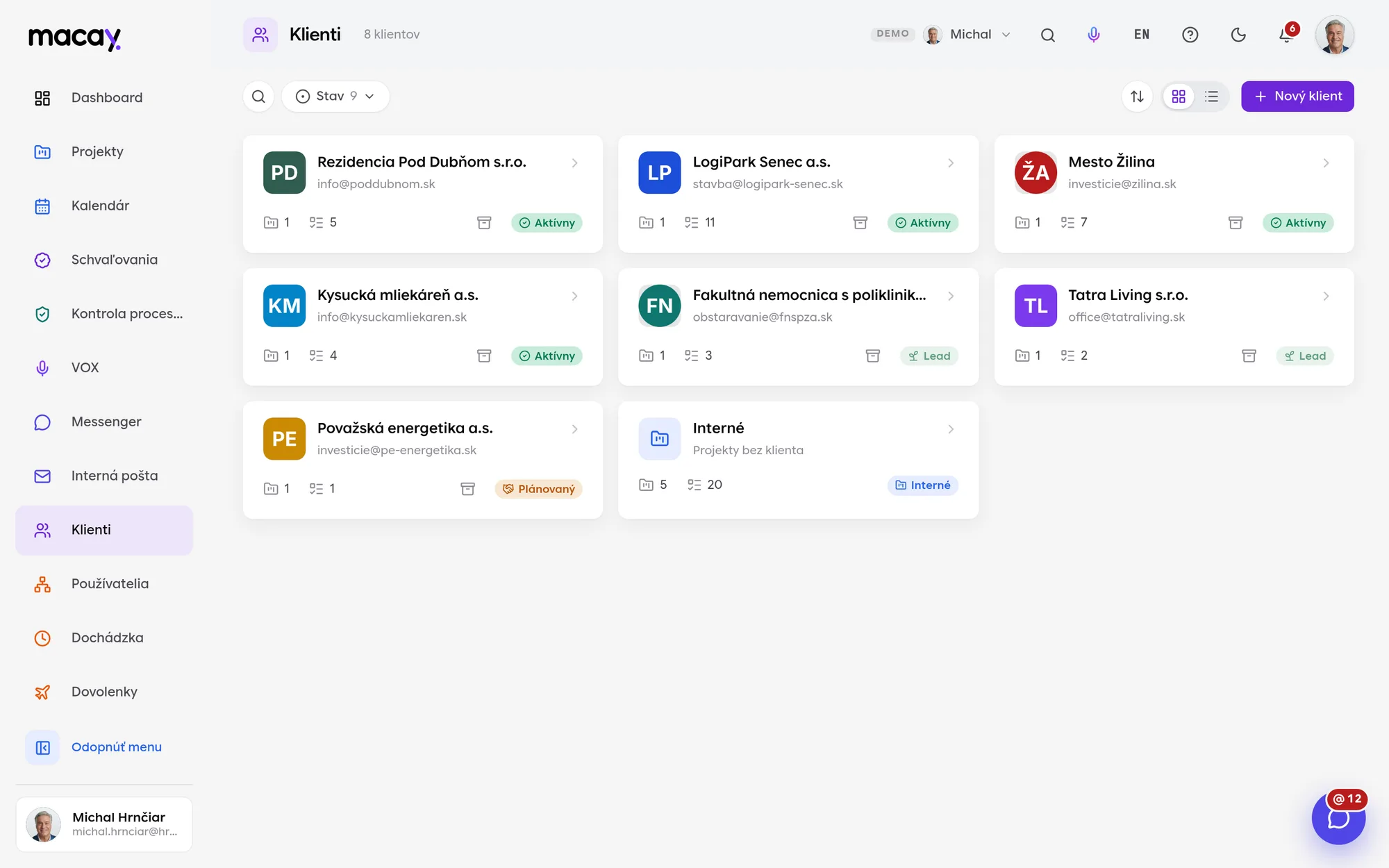
- 1Filter Search and filter by status.
- 2Client card Contact, projects and open tasks.
- 3Archive Set a client aside without losing data.
- 4New client Name, email, phone and logo.
- 5Status Lead, planned, active.
- 6Internal Projects without a client in one place.
Billing details
Company ID, tax ID, VAT ID, registry entry, address, IBAN, VAT mode, payment terms, currency and invoicing email.
Connected to invoicing
On a new invoice, the due date and currency are prefilled from the client profile. MACAY flags a missing company ID or address.
Contact persons
Name, position, e-mail and phone. You mark one contact as primary.
Sales notes
Short notes with author and time. The whole team knows what was agreed with the client.
Invoices and receipts in one overview.
Issued invoices, supplier invoices and company expenses each have their own side in MACAY. You see who owes you, what you need to pay and which team member needs a receipt reimbursed.
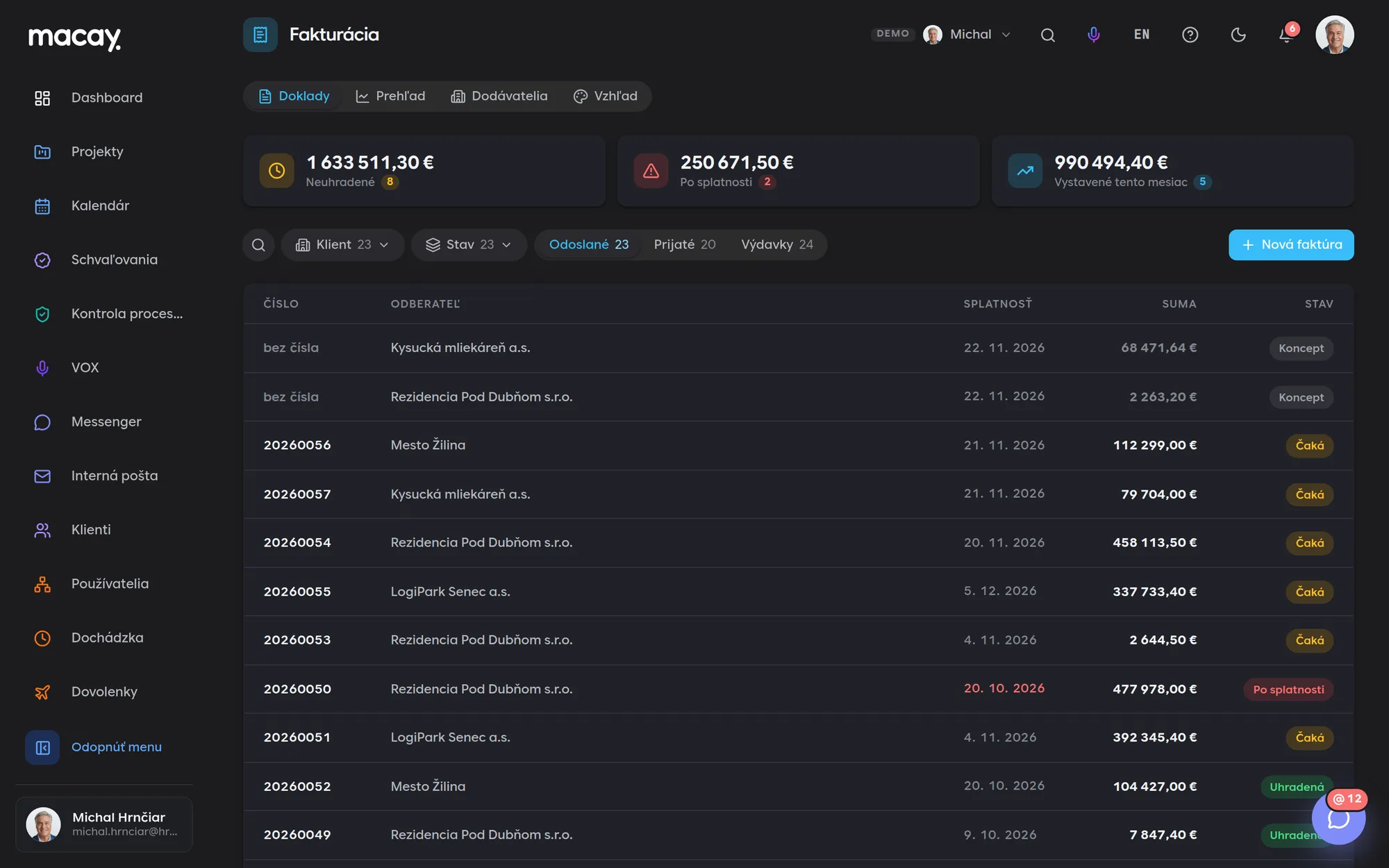
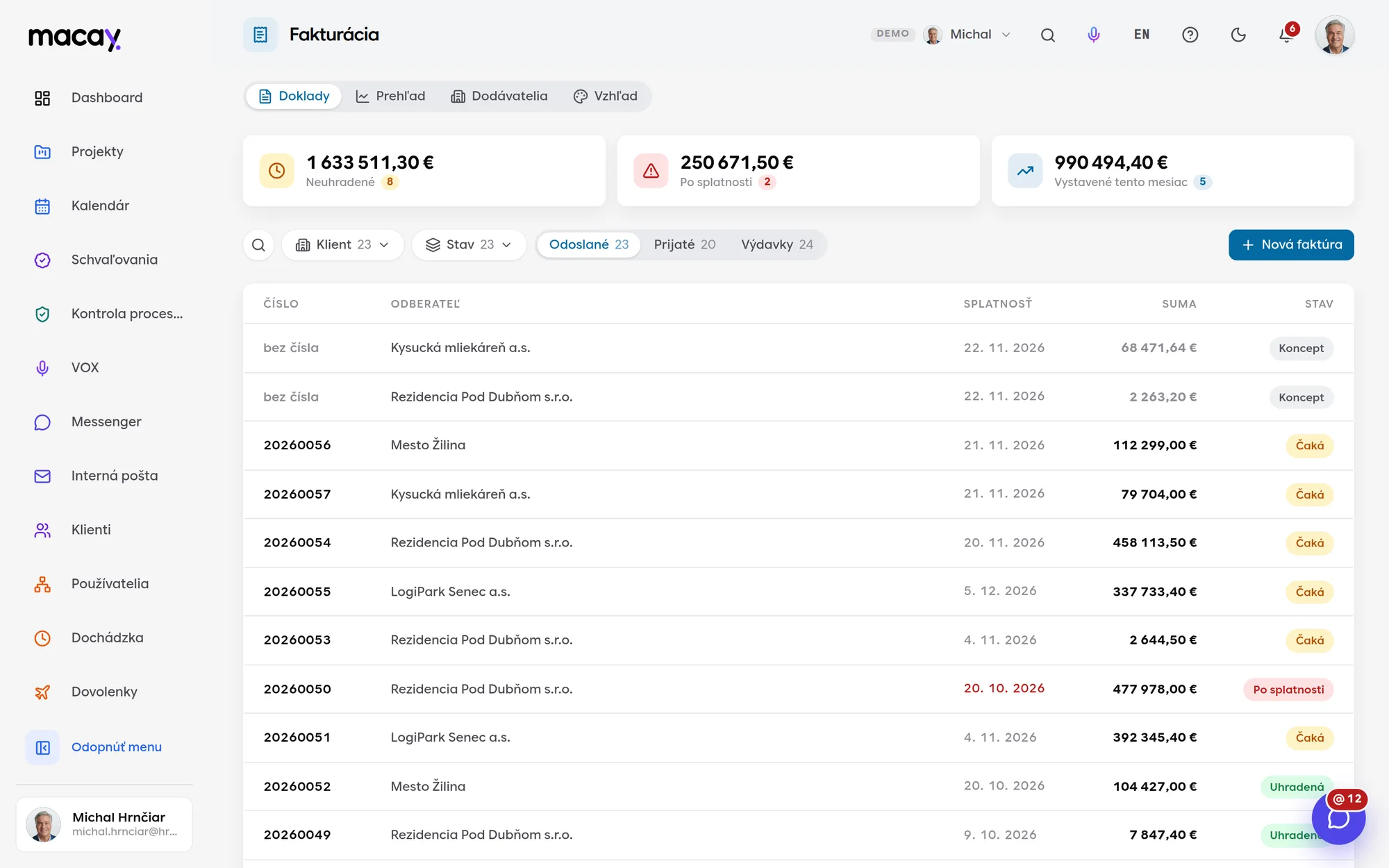
- 1Subpages Documents, overview, suppliers and appearance.
- 2Three sides Issued invoices, received invoices and expenses.
- 3Draft Gets a number only when issued.
- 4Summaries Unpaid, overdue, this month.
- 5New document Action based on the open side.
- 6Status Overdue is visible right in the list.
Customer details check
An invoice can't be issued without a company ID, street, city and postal code. An alert shows what's missing and links straight to the client profile.
Gap-free numbering
The number is assigned only when the invoice is issued, not when drafted. A discarded draft leaves no gap and a double click never issues a document twice.
Received invoices with approval
You record a supplier invoice with its scan, and it can wait for approval before payment. The same number from the same supplier can't be entered twice.
Receipts from mobile
Snap a receipt right on your phone and assign a category and project. For each expense you mark whether the VAT is deductible.
Client reports without piecing them together from emails.
Summarize in plain language, in one document, what was done for the client and what goes on the invoice. The team adds their parts, an admin approves the report and the client gets a link that opens without logging in.
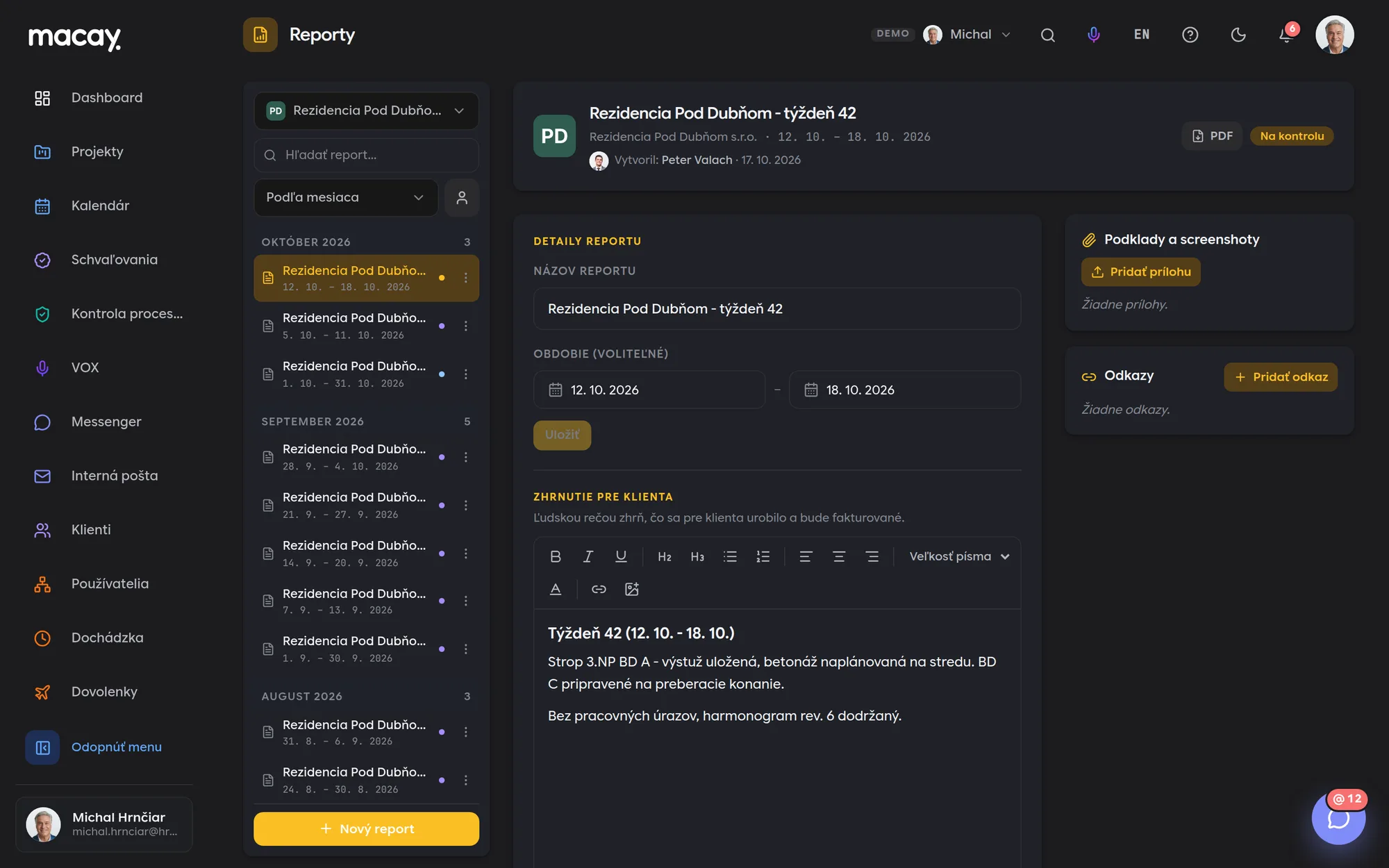
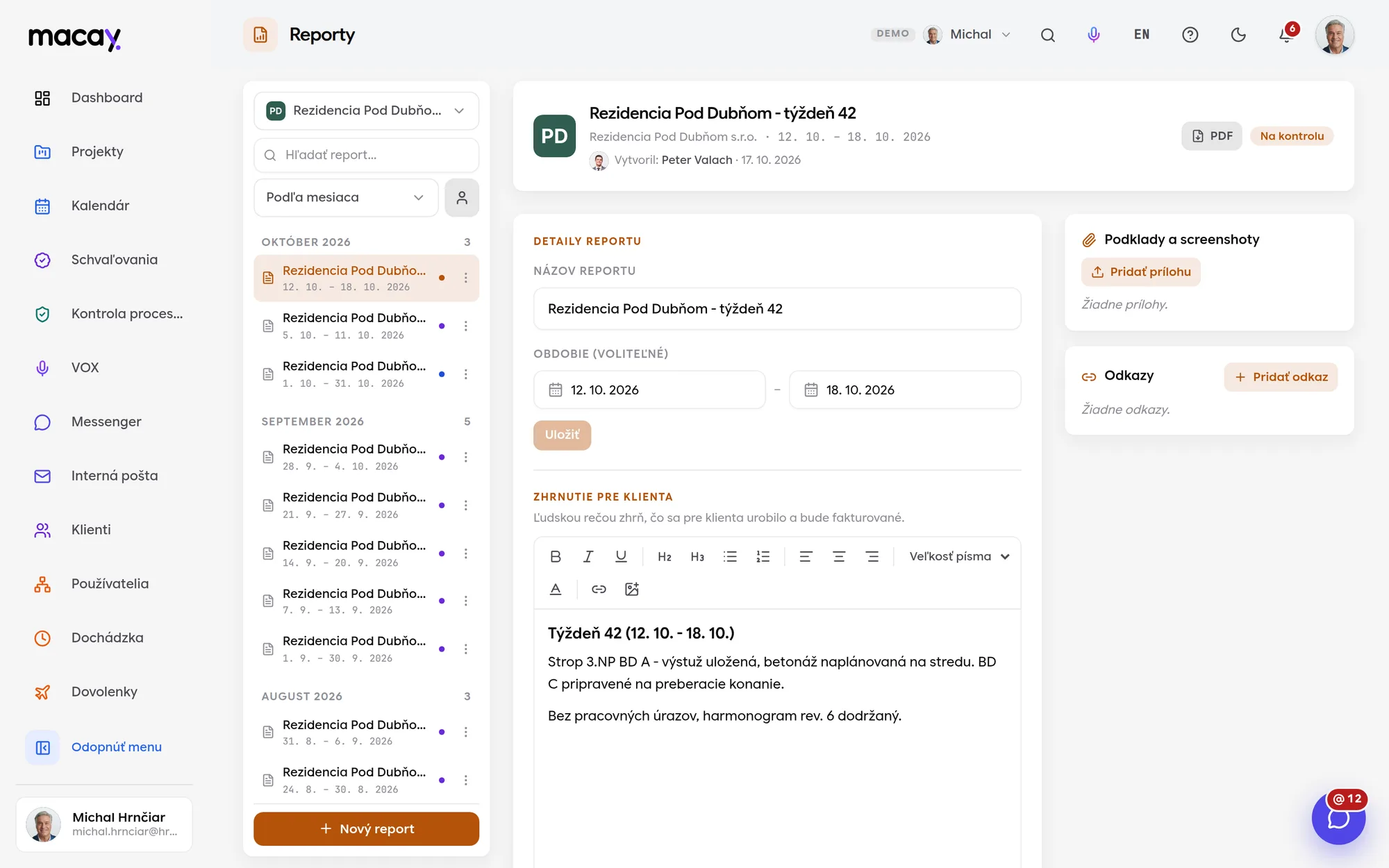
- 1Client Reports grouped by client.
- 2Periods Weeks and months listed below each other.
- 3Summary In plain language, with headings and images.
- 4Status Collecting, review, approved, sent.
- 5Materials Screenshots and files for the report.
- 6Links Links to deliverables for the client.
One shared team document
Assignees write into one report, not each into their own e-mail. With every change the others get a notification.
In plain language
An editor with headings, lists, links, text color and images right in the text. You write the summary so the client can understand it.
Approval before sending
It can be approved only when all parts are final and the summary is filled in. An approved report can still be sent back for review.
A link for clients without an account
The client receives an e-mail with a read-only link. The link works only after sending, so a report in progress cannot be seen through it.
We're happy to answer all your questions.
If you can't find what you're looking for, write to us. We'll answer specifically for your company and show it right in the system.
Yes, to their own company's documents in the Files module. They see projects and tasks read-only, so they can't change your internal work. If you want to give the client more, we'll set it up custom.
No. Client profiles, invoicing, expenses, internal projects and internal communication are closed to client accounts.
Yes. In the profile you set whether you're a VAT payer. Non-payers invoice without tax, VAT payers have a default rate they can change on each line.
Yes. You set the logo, accent color, font, footer text and a field for a stamp and signature in the template. Different customers can have different templates.
No. The link from the e-mail opens without logging in. If the client has an account, after logging in they see the sent reports for their company.
No. The team writes the report and the admin approves it. MACAY keeps the order of steps, the notifications and the sending to the client.
Didn't find what you're looking for?
We build custom modules exactly around your process - on the same foundations as all the others.